Filter at the network boundary
A router sits between every home device and the internet, so one setting there can shape what a phone, laptop, console and smart TV reach on that Wi-Fi. The trade-off is reach: it applies only on that network. These notes cover DNS filtering, built-in parental controls and locking the router itself.
- Covers
- Devices on this home network
- Misses
- Mobile data and other networks
- Key held by
- Whoever has the router password
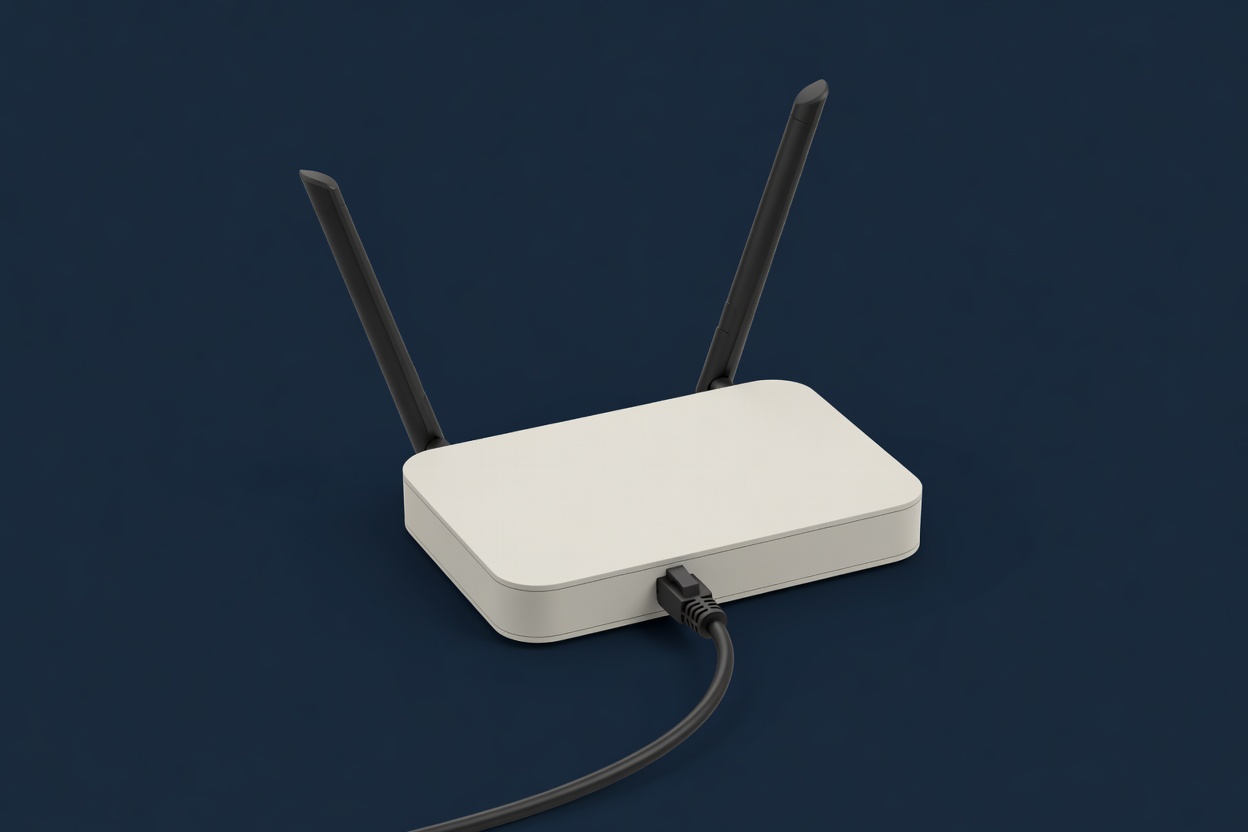 Router
What DNS filtering does
DNS is the lookup service that turns a site's name into the numbers a device connects to. A filtering DNS service declines to answer for names in blocked categories, so the page never loads. The router hands DNS settings to the devices on the network, which is why changing it there changes it for the household.
Categories differ between services. Some focus on malware or adult content, and others list gambling as a category. Read a provider's own documentation for a gambling category before relying on it.
Three ways to filter at the router
| Approach | How it works | Limit |
|---|---|---|
| Router parental controls | A menu in the router's admin page or app, often with category lists | Quality and categories depend on the router maker, and some routers offer none |
| Filtering DNS service | The router's DNS setting points to a provider that blocks categories | Depends on the provider's categories, and devices with their own DNS settings may ignore it |
| Pi-hole | Free open-source software on a small always-on computer such as a Raspberry Pi answers DNS using blocklists you choose | Needs setup and upkeep, and the network loses name lookups if it is switched off |
Routers running the open-source firmware OpenWrt can also run DNS filtering, which suits readers who already manage their own equipment.
Changing the DNS setting, step by step
- Find the router's admin address and login on the label on the router. Private addresses such as 192.168.0.1 or 192.168.1.1 are common. Enter the address in a browser while on the home Wi-Fi.
- Change the admin password if it is still the printed default, and ask a trusted person to keep the new one.
- Find the DNS setting, often under Internet, WAN or DHCP.
- Enter the primary and secondary DNS addresses exactly as the provider publishes them in its setup guide.
- Save, restart the router and reconnect your devices so they pick up the new setting.
- If the provider offers a test page for blocked categories, open it to confirm the filter is active.
Some broadband routers supplied by an internet provider do not allow a custom DNS setting. In that case set DNS on each device instead, using the phone and computer guides.
DNS filters versus device controls
| Question | Router DNS filter | Device control |
|---|---|---|
| Reach | Every device on this network | One device |
| Away from home | No effect | Stays with the device |
| Who can change it | Whoever has the router password | Whoever has the passcode |
| Setup effort | Once per network | Once per device |
| Typical gap | Mobile data and other networks | Devices you forgot |
Lock the router itself
A filter is only as firm as the router's admin login. Use a strong admin password that is not your Wi-Fi password, keep the firmware updated and switch off remote administration if the router offers it. Check whether a guest network uses the same DNS setting as the main one, because some routers treat them separately.
What a router cannot cover
- Mobile data, including a phone that leaves the Wi-Fi.
- Other people's Wi-Fi, cafes and workplaces.
- Devices or apps set to use their own DNS, including browsers with a secure DNS option switched on.
- Gambling addresses missing from the provider's categories or lists.